Every day, millions of people run into the same frustrating wall: they have text trapped inside an image. It might be a screenshot of an important paragraph, a photo of a whiteboard from a meeting, a scanned contract, or a PDF that refuses to let you copy a single word. Retyping that content manually is slow, error-prone, and honestly, a waste of time in 2026. That's exactly the problem Optical Character Recognition (OCR) solves — and our free Text Extractor OCR tool makes it effortless.
In this guide, we'll break down what OCR actually is, how our Text Extractor works, the best use cases for it, and practical tips to get the cleanest possible results whether you're digitizing receipts, extracting quotes from a screenshot, or converting a scanned book page into editable text.
What Is OCR and Why Does It Matter?
OCR (Optical Character Recognition) is technology that analyzes an image or scanned document, detects character shapes, and converts them into machine-readable, editable text. Instead of manually retyping a paragraph from a photo, OCR does the heavy lifting in seconds.
OCR has quietly become essential infrastructure for modern workflows. Businesses use it to digitize invoices and receipts. Students use it to pull notes from textbook photos. Developers use it to automate data entry from scanned forms. Journalists and researchers use it to extract quotes from screenshots without transcription errors.
How the FastestChecker Text Extractor Works
Our Text Extractor OCR tool is built for speed and simplicity — no software downloads, no account creation, and no watermarks on your output. Here's the basic workflow:
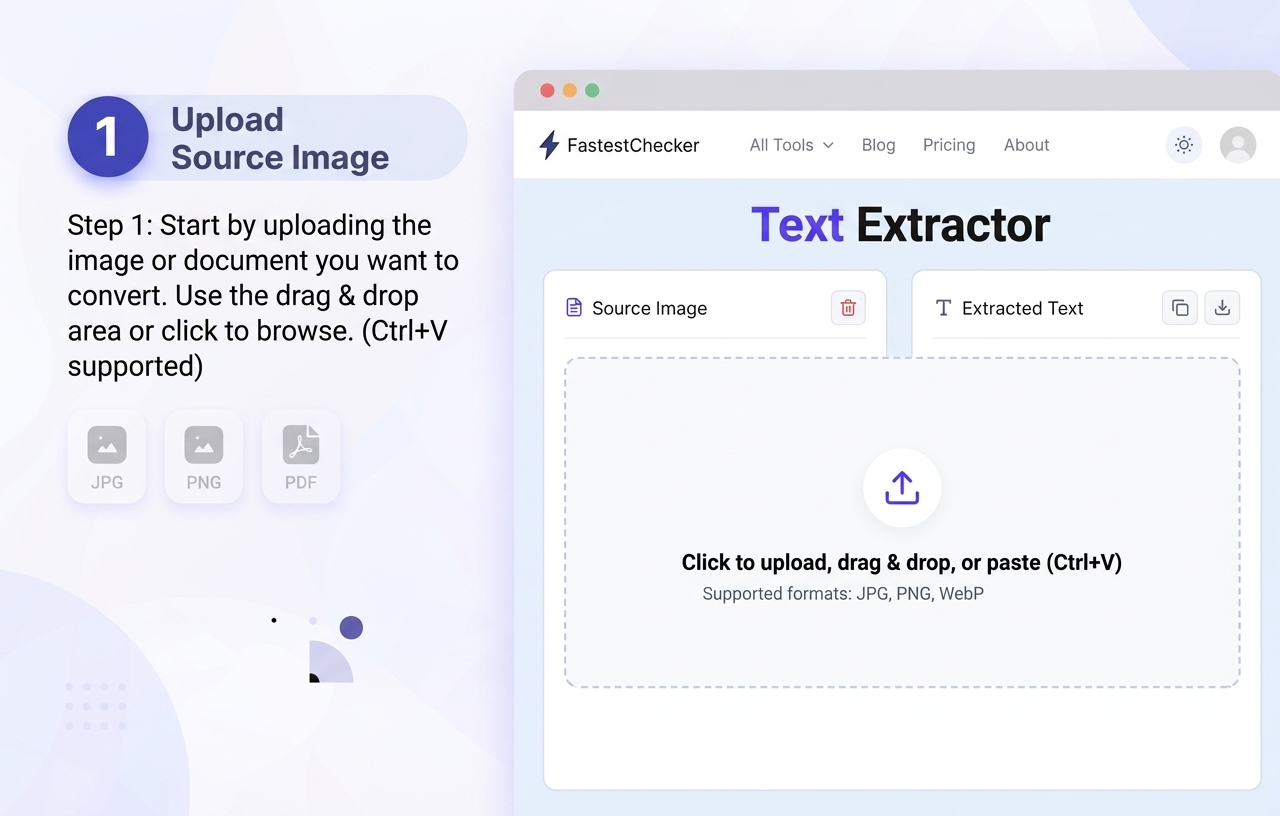
- Upload your file. Start by uploading the image or document you want to convert into editable text. Simply drag and drop your file into the Text Extractor, click the upload area to browse your device, or paste an image directly from your clipboard. The tool supports common image formats such as JPG, PNG, and WEBP, along with scanned documents and PDFs. Whether you are working with a screenshot, scanned page, receipt, form, or document image, uploading the file is the first step toward extracting its text.
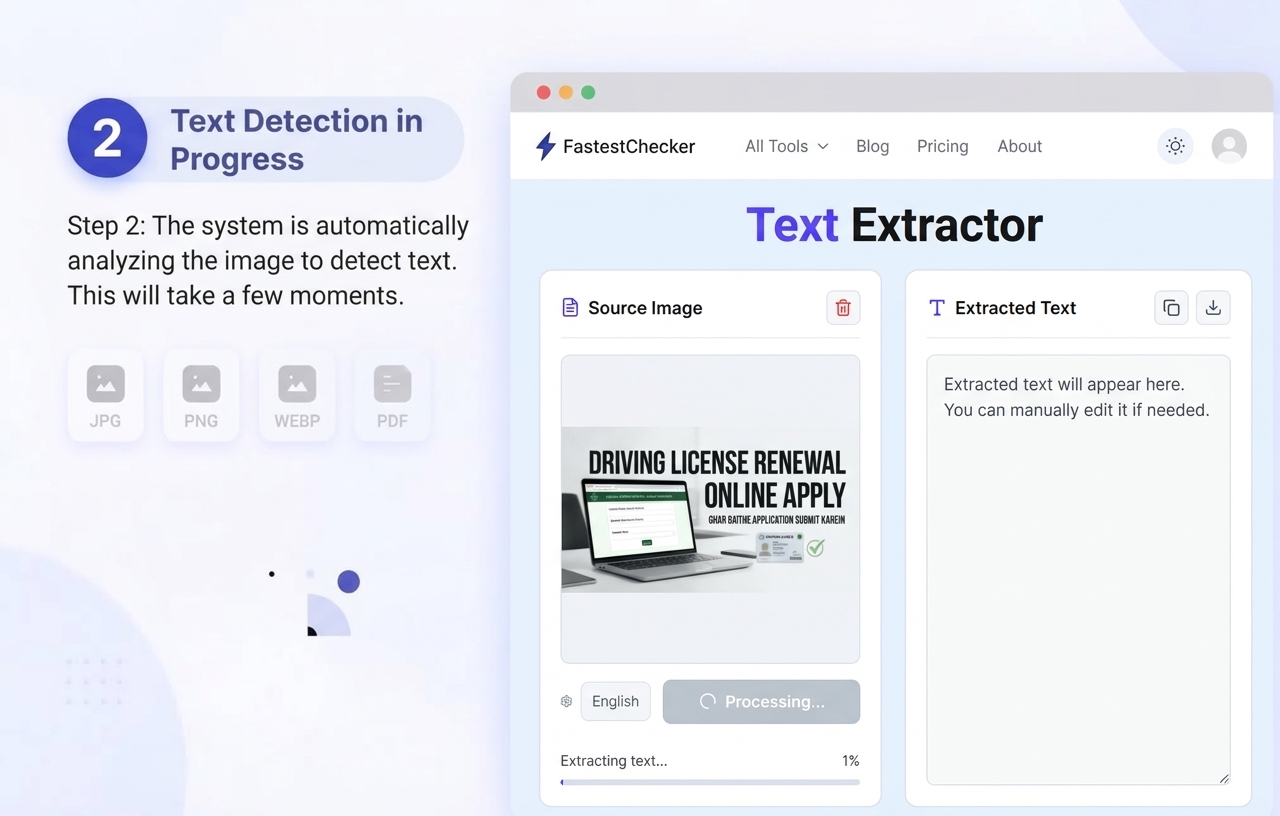
- Automatic processing. Once your file is uploaded, the Text Extractor automatically begins processing it without requiring complicated settings or manual configuration. The OCR engine analyzes the uploaded image or document to locate text regions and recognize individual characters, words, and lines. It processes the visible content across the document and converts text that would normally be difficult to select or copy into machine-readable content. This makes it easier to extract information from screenshots, scanned pages, photographed documents, and other text-based images.
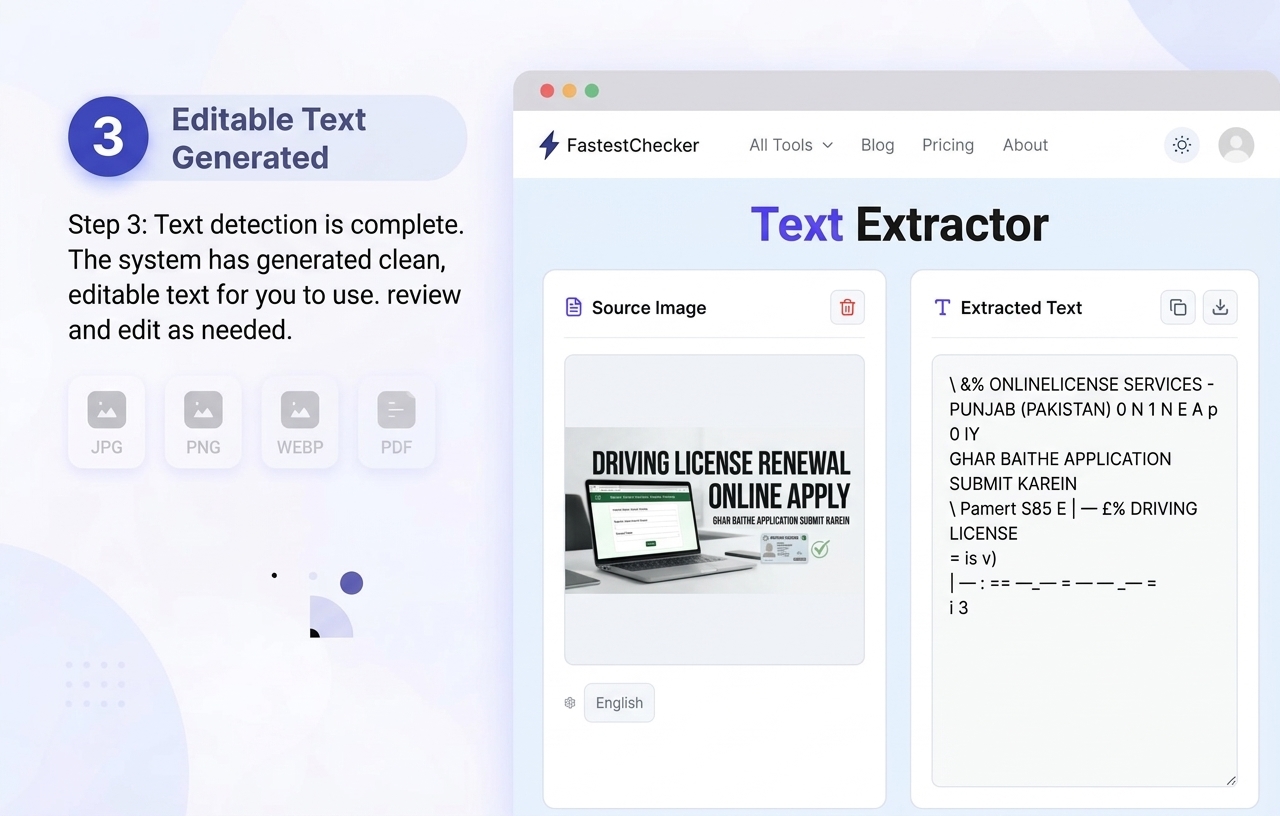
- Instant editable output. After the OCR process is complete, the extracted content appears as clean, editable text. Instead of manually typing the words from an image, you can review the recognized text and select the portions you need. The result can be copied into applications such as Microsoft Word, Google Docs, spreadsheets, emails, content management systems, and other editing tools. This is particularly useful when you need to reuse information from scanned documents, screenshots, notes, forms, or other images without retyping everything manually..
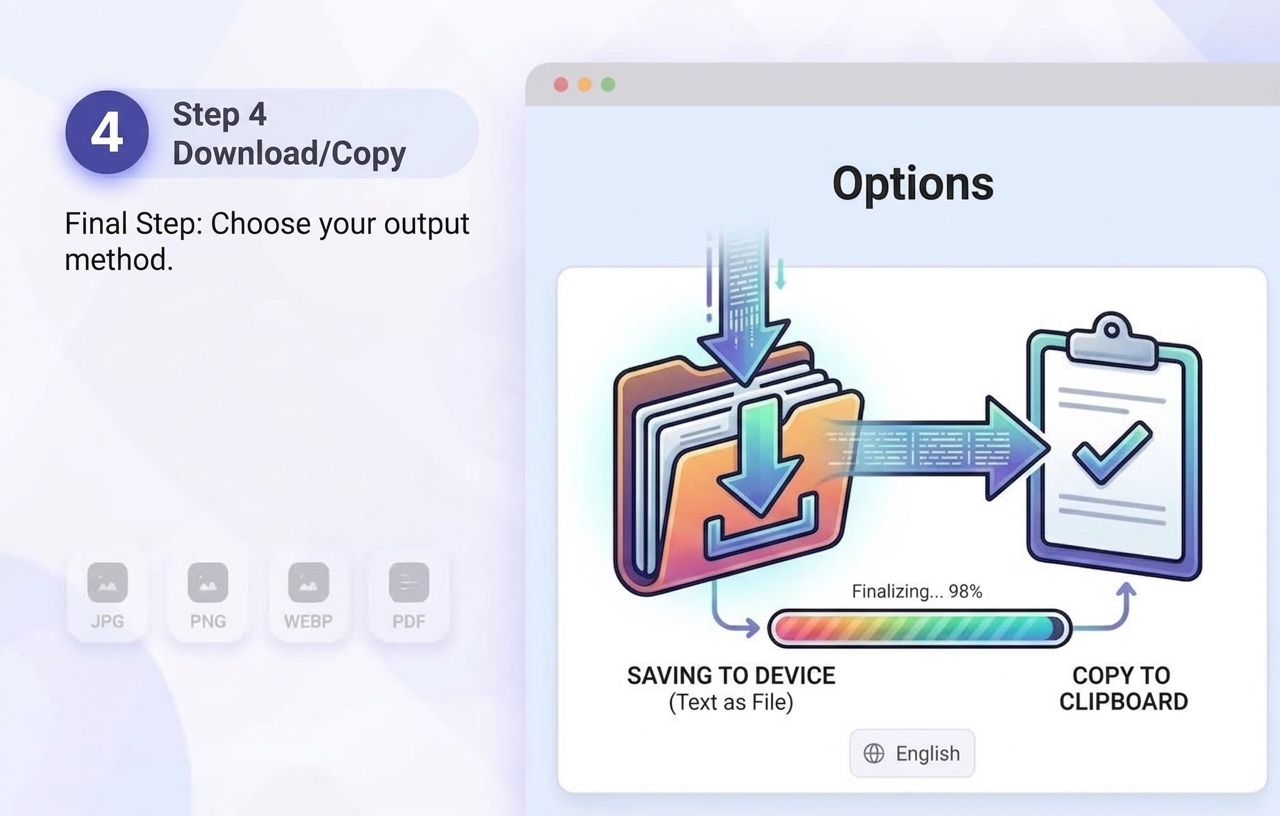
- Download or copy. When you are satisfied with the extracted text, you can move it directly into your next task. Use the Copy option to place the text on your clipboard and paste it wherever you need it, or use the available download/export option when you want to save the extracted content for later use. This final step makes the OCR workflow quick and practical, allowing you to turn text locked inside an image or scanned document into reusable digital content in just a few moments.
Pro tip: For the highest accuracy, use well-lit, high-resolution images with minimal blur or skew. Straight-on photos of documents perform significantly better than angled shots.
Top Use Cases for Text Extraction
1. Digitizing Scanned Documents
Scanned documents often contain valuable information, but the text inside them may not be selectable, searchable, or easy to edit. OCR makes it possible to convert these image-based documents into usable digital text without manually typing every word. Old contracts, printed forms, reports, invoices, certificates, receipts, and paper archives can be processed to create searchable and editable content. This can be especially useful for businesses, legal teams, HR departments, schools, and administrative offices that regularly work with large collections of printed or scanned documents.
Instead of keeping information locked inside scanned pages, you can extract the text and move it into digital documents, databases, spreadsheets, or other systems. This makes older records easier to organize, search, review, and reuse while reducing the amount of time spent on repetitive manual transcription.
2. Extracting Quotes From Screenshots
Screenshots are a convenient way to save information from websites, social media posts, online articles, presentations, messages, and other digital content. However, the text inside a screenshot usually cannot be selected or copied like normal webpage text. A Text Extractor can recognize the words displayed in the image and convert them into copyable text, making it much easier to reuse the information.
Journalists, students, researchers, content creators, and professionals can use OCR when they need to capture a quote or important piece of information from a screenshot. Instead of manually retyping several lines and potentially introducing spelling mistakes, they can extract the visible text and then review it against the original screenshot before using it in an article, report, presentation, research document, or other project.
3. Converting Receipts and Invoices
Receipts and invoices contain important information such as business names, transaction dates, item descriptions, prices, totals, invoice numbers, and other details. When these documents are provided as photographs or scanned images, manually entering all of that information can become a repetitive task. OCR can help turn the visible information into digital text that is easier to copy, organize, and transfer into bookkeeping or expense-management workflows.
Freelancers, small businesses, accountants, and office teams can photograph a receipt or scan an invoice and use text extraction to capture useful details more quickly. Extracted information can then be reviewed and entered into spreadsheets, accounting software, expense reports, or internal records. While important financial information should always be checked against the original document, OCR can significantly reduce the amount of manual typing involved.
4. Making PDFs Searchable and Editable
Not every PDF contains actual selectable text. Many scanned PDFs are essentially collections of page images, which means you may be unable to search for a specific word, select a paragraph, or copy information directly from the document. OCR can analyze the text displayed on those scanned pages and convert it into machine-readable content, making the information much easier to work with.
This is particularly useful for archived reports, scanned books, old forms, printed manuals, business records, and other documents that were originally created on paper. Once the text has been extracted, users can search through the content, copy important sections, paste information into another application, or edit the extracted text as needed. This can make large collections of scanned documents considerably easier to access and manage.
5. Accessibility
Text extraction can also make information contained in images and scanned documents easier to access. When text is locked inside an image, it may not work effectively with tools that depend on machine-readable content. Converting the visible words into digital text can provide an additional way to access and reuse information that would otherwise remain difficult to process.
Extracted text can be used with screen readers, translation applications, note-taking software, search tools, and other digital services. This can be helpful when working with screenshots, scanned educational materials, photographed documents, or visual information that needs to be converted into a more accessible format. OCR does not replace dedicated accessibility solutions, but it can be a useful step for turning image-based content into text that other digital tools can process.
| Factor | Impact on Accuracy | Recommendation |
|---|---|---|
| Image resolution | High | Use at least 300 DPI or a clear high-res photo |
| Lighting & contrast | High | Avoid shadows and glare on the page |
| Font style | Medium | Standard printed fonts extract cleaner than handwriting |
| Skew/rotation | Medium | Keep the document straight and flat in frame |
| Language | Medium | Verify multi-language support before uploading mixed-language docs |
Callout tip: If your extracted text has minor errors, quickly proofread against the original image — even top-tier OCR engines can occasionally misread stylized fonts or low-contrast scans.
OCR vs. Manual Transcription: The Time Savings
Manually transcribing a single page of text can take 5–10 minutes depending on length and formatting complexity. With OCR, that same page is extracted in under 5 seconds. For anyone processing dozens of documents — students, researchers, small business owners — this isn't just convenient, it's a massive productivity multiplier.
Pairing Text Extraction With Other FastestChecker Tools
Once you've digitized your content, a few of our other free tools can help you go further:
- Validate any email addresses you extracted from business cards or forms with our Email Validator.
- Generate a shareable QR code from an extracted link or address using our QR Code Generator.
- Resize scanned document images before uploading for cleaner OCR results with our Image Resizer.
- Need a secure password after digitizing account records? Try our Password Generator.
Best Practices for Cleaner OCR Results
- Crop out unnecessary background before uploading.
- Use PNG or high-quality JPG formats over compressed, blurry screenshots.
- Split multi-column documents into separate images if the layout is complex.
- Double-check numbers and proper nouns, which are the most common sources of OCR misreads.
- For scanned PDFs, ensure pages aren't rotated before uploading.
Final Thoughts
Whether you're a student digitizing lecture notes, a business owner processing receipts, or a developer automating data entry, OCR eliminates one of the most tedious parts of working with visual content: manual transcription. Our Text Extractor OCR tool is free, fast, and requires zero setup — just upload and extract.
Give it a try the next time you're staring at a screenshot, scanned form, or photographed document you wish was just... text.
Frequently Asked Questions
Is the FastestChecker Text Extractor OCR tool free to use?
Yes, the Text Extractor tool is completely free with no signup required. Simply upload your image or PDF and get editable text instantly.
What file types does the OCR tool support?
The tool supports common image formats like JPG, PNG, and WEBP, as well as scanned PDF documents. For best results, use clear, high-resolution files.
Can OCR read handwritten text accurately?
OCR performs best on printed, typed text. Handwriting recognition is improving but tends to be less accurate, especially with cursive or stylized handwriting.
Is my uploaded document stored or shared anywhere?
FastestChecker processes your file only to extract the text and does not use your documents for any purpose beyond delivering your results.
Muhammad Asad Arshad is the Founder and Lead Software Architect of FastestChecker, specializing in client-side Web APIs, cryptographic standards, and network diagnostics.