Ever spotted the perfect shade of blue in a photograph, a screenshot, or a competitor's website and wished you could instantly know its exact hex code? Whether you're a web designer matching brand colors, a developer building a UI, or a hobbyist creating digital art, manually guessing color values wastes time and rarely gets the shade right. That's where an image color picker comes in — a tool that lets you upload any image and instantly extract precise hex, RGB, and HSL values from any pixel you click.
In this guide, we'll walk through exactly how to use the Image Color Picker on FastestChecker, why pixel-perfect color extraction matters for design consistency, and how professionals use this tool as part of a broader web development workflow.
What Is an Image Color Picker?
An image color picker (sometimes called an 'eyedropper tool' or 'color extractor') is a utility that analyzes the pixels of an uploaded image and returns the exact color value at any point you select. Instead of eyeballing a color and guessing its hex code, you get mathematically accurate output in multiple formats — instantly.
This is different from a standard color wheel or swatch picker, which lets you *choose* a color from a predefined palette. An image color picker instead *reads* color data directly from a real image, screenshot, or photo, making it indispensable when you need to replicate an exact shade rather than approximate one.
Why Accurate Color Extraction Matters
- Brand consistency: Marketing teams and brand managers need pixel-perfect color fidelity to maintain a unified brand identity across all media—from digital logos and websites to physical print materials, packaging, and advertising. A slightly-off hex code might seem minor, but it can make a logo appear visibly faded, discolored, or mismatched when viewed on different display panels or printed products, ultimately diluting brand trust and recognition.
- UI/UX design: User experience and visual designers routinely reference colors from existing mockups, competitor websites, mood boards, or visual inspiration assets when building user interfaces. Using exact extracted color codes ensures that UI components like buttons, gradients, navigation bars, and active states seamlessly align with original design concepts in tools like Figma, Adobe XD, and Photoshop without needing time-consuming visual guesswork.
- Web development: Frontend developers translating high-fidelity design prototypes or flat screenshots into live CSS/HTML code require precise HEX, RGB, or HSL values. Guessing or approximating colors creates visible discrepancies between design files and the production website. Exact color extraction guarantees that coded elements—including backgrounds, borders, typography, and hover effects—mirror the intended design specification pixel for pixel.
- Accessibility compliance: Modern web standards require websites to meet Web Content Accessibility Guidelines (WCAG) for contrast ratios, ensuring text and interactive elements are readable for visually impaired users. Knowing the exact mathematical color values of your backgrounds and foreground text allows developers and designers to run accurate contrast ratio checks and achieve compliance (AA or AAA levels) before launching a site.
- Digital art & photography: Illustrators, digital painters, and photographers frequently source real-world color inspiration from reference photos, fine art, or nature imagery. Extracting exact shade values enables artists to build realistic skin tones, natural lighting effects, and cohesive color palettes for digital artwork, mood boards, photo editing presets, and graphic design templates without losing subtle tonal nuances.
Pro Tip: Always extract colors from a high-resolution, uncompressed version of your image when possible. Heavy JPEG compression can shift pixel colors slightly, leading to inaccurate hex codes.
How to Use the FastestChecker Image Color Picker
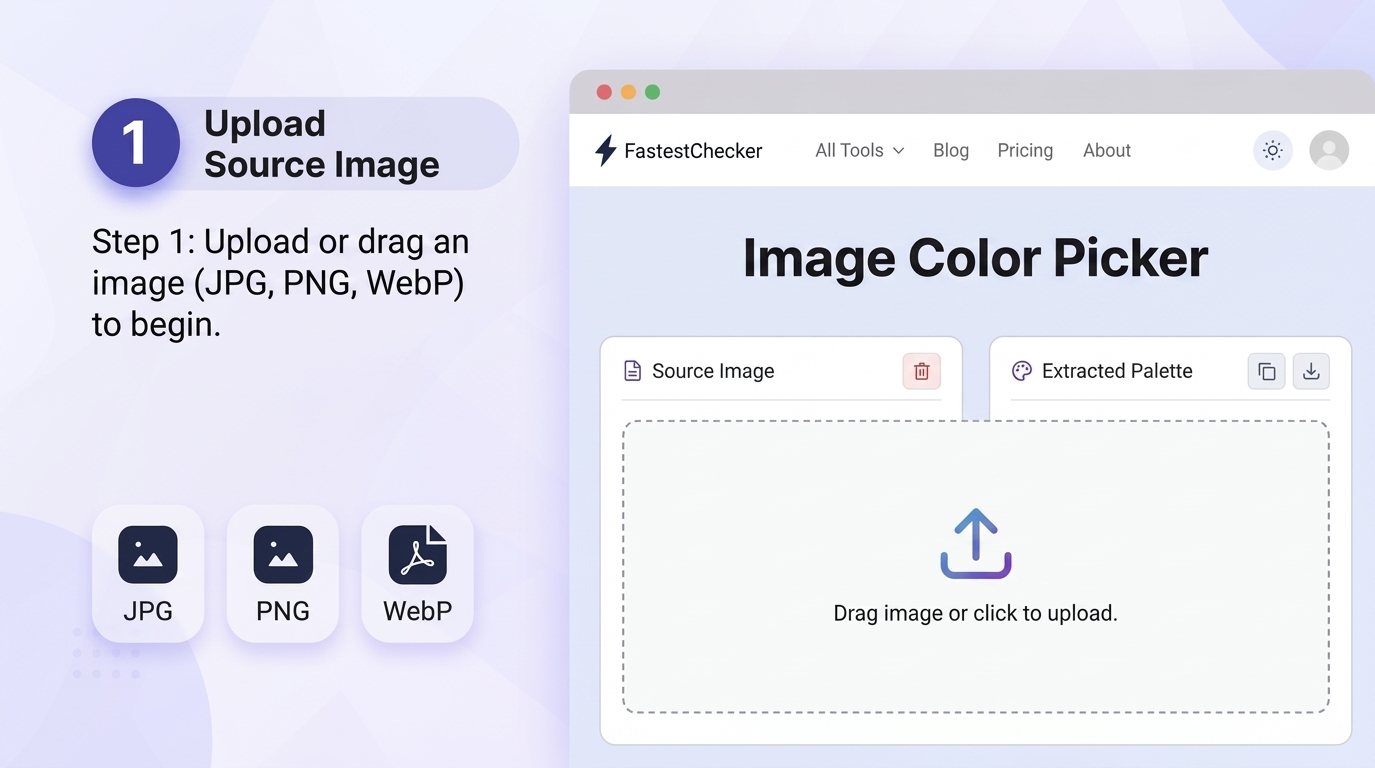
- Upload your image: Open the Image Color Picker tool in your web browser and click the upload area (or drag and drop your file directly). The tool supports all major image formats, including PNG, JPG/JPEG, and WebP. For the highest precision, upload an uncompressed or high-resolution PNG file to prevent compression blur from altering pixel colors.
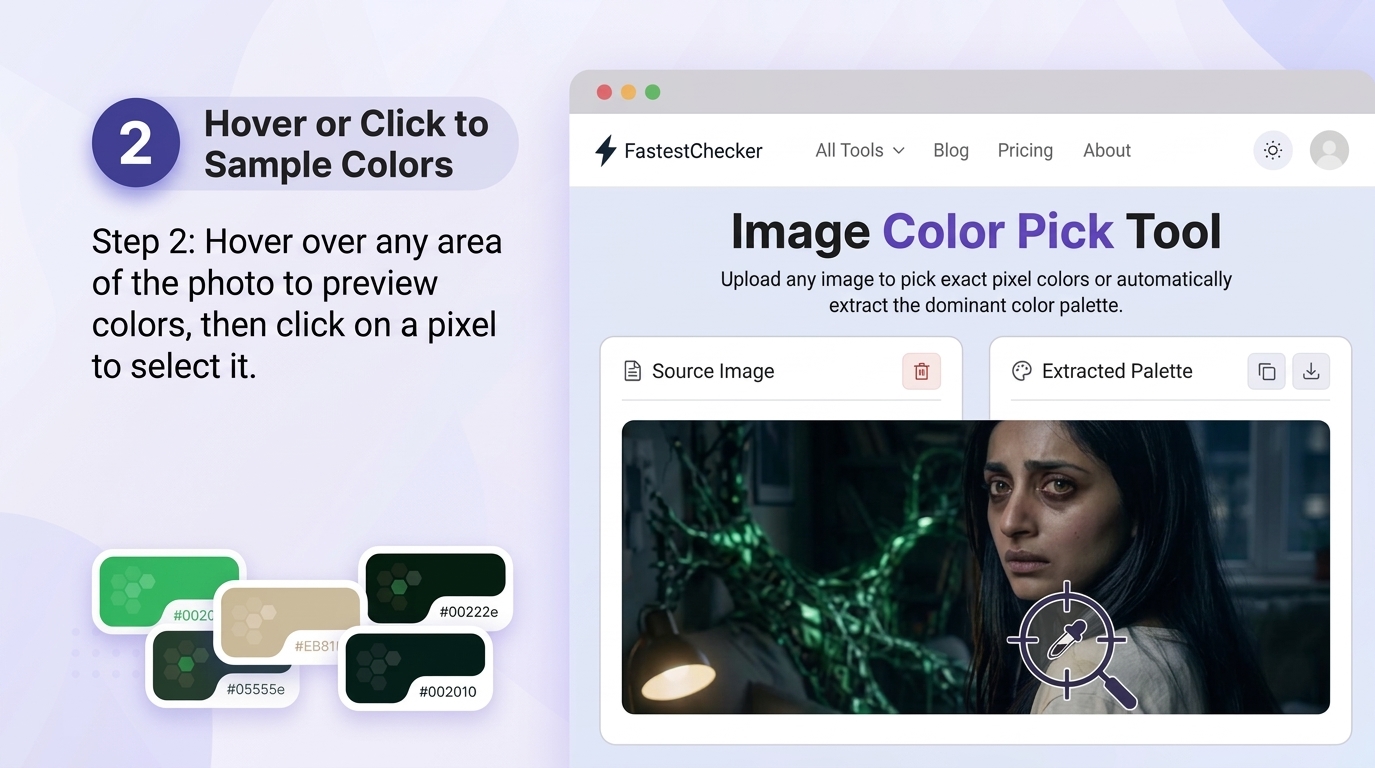
- Hover or click to sample: Move your cursor across any area of the uploaded photo to see a real-time color preview with a dynamic magnifying view. Once you locate the specific shade you need, click directly on that precise pixel. The tool instantly locks onto that exact coordinate to extract its true color profile.
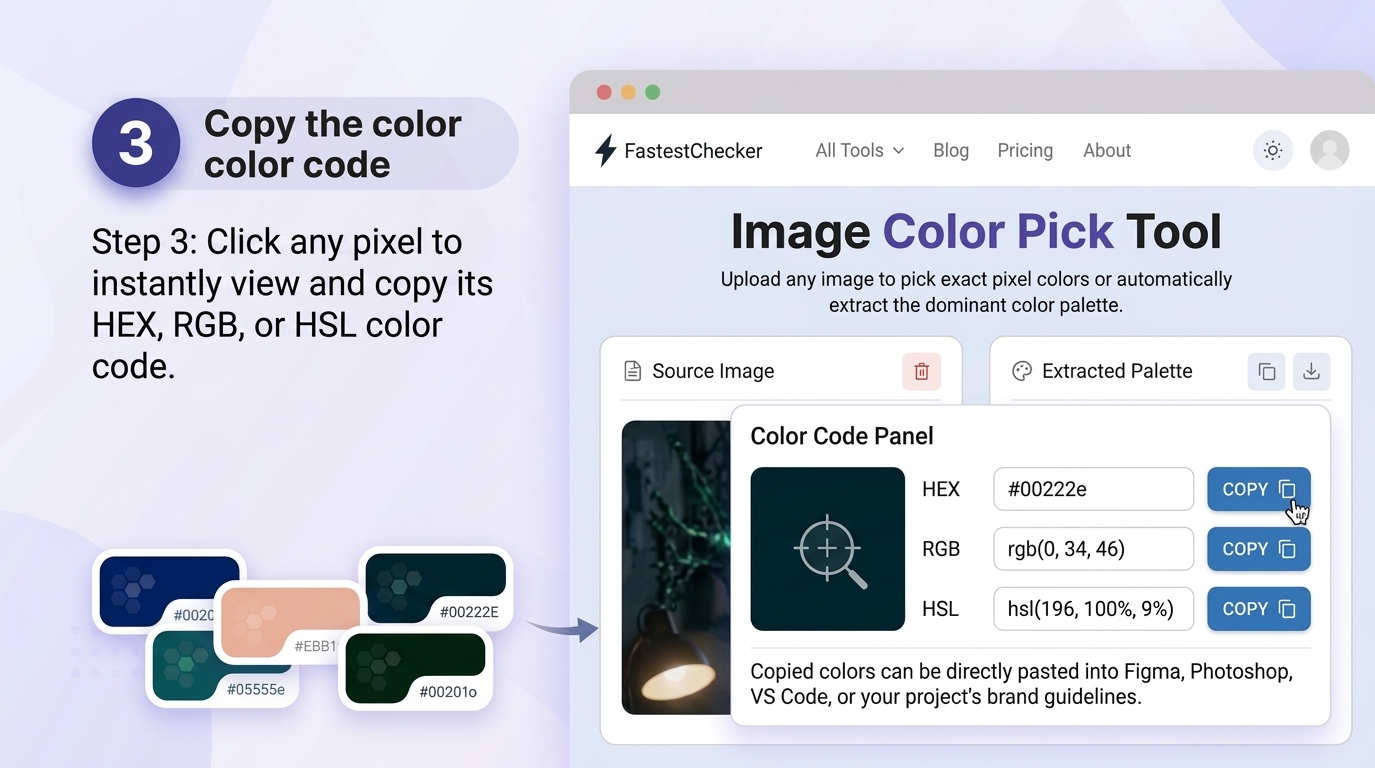
- Copy the color code: As soon as you click a pixel, the tool automatically calculates and displays the exact values in three widely used formats: HEX (for web design and CSS), RGB (for screen displays and digital UI), and HSL (for adjusting saturation and lightness). Simply click the copy button next to your preferred format to paste it directly into Figma, Photoshop, VS Code, or your project's brand guidelines.
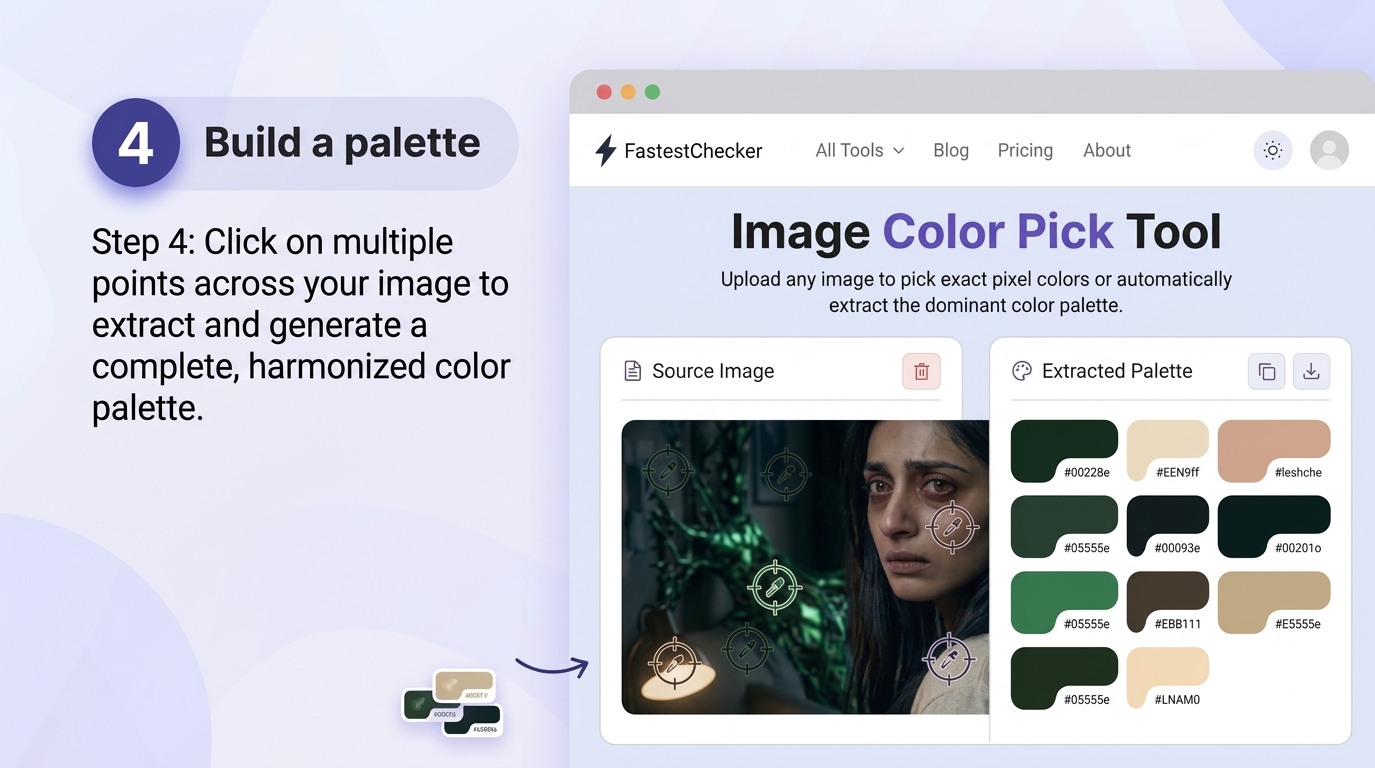
- Build a palette: Instead of sampling just one shade, click on multiple points across your image—such as shadows, highlights, and primary subjects—to generate a complete, harmonized color palette. This is ideal for extracting full brand themes, natural landscape tones, or UI color schemes directly from a single reference image.
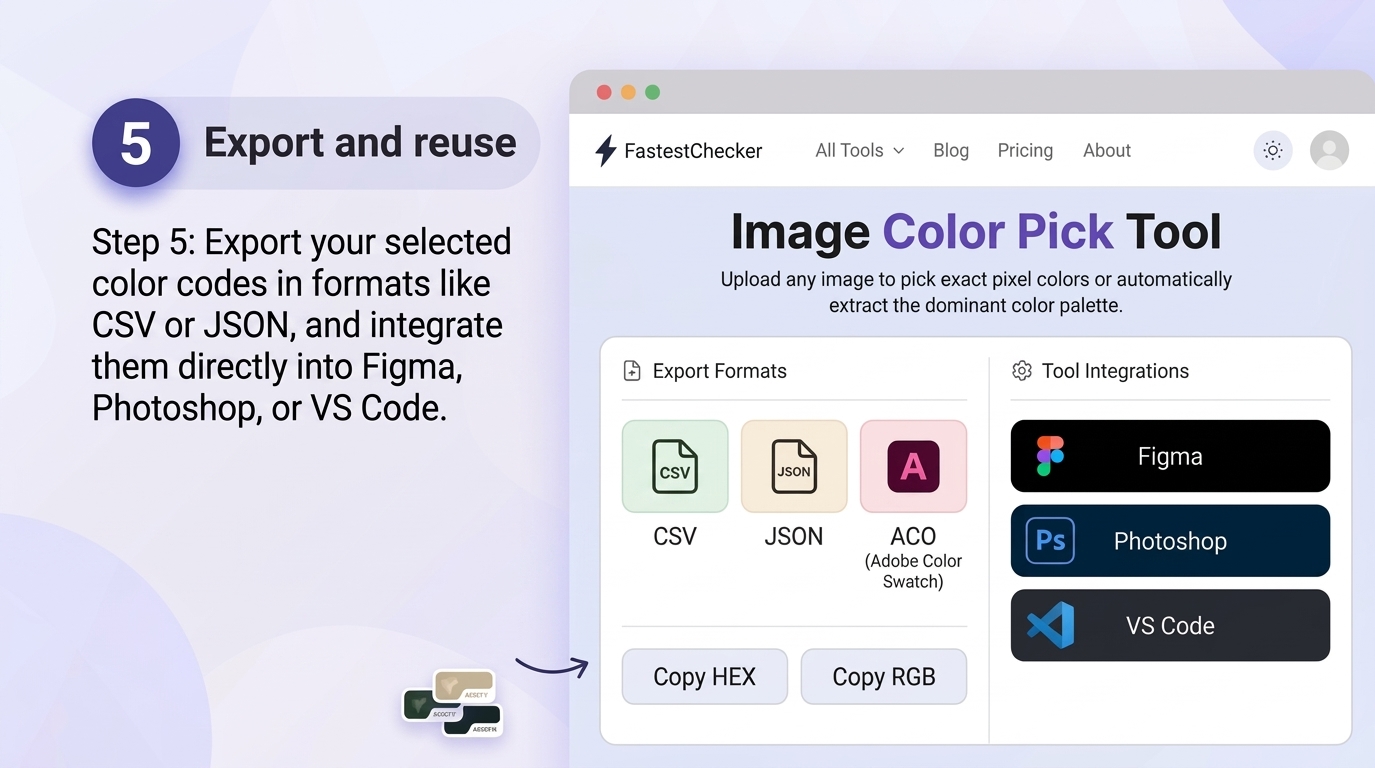
- Export and reuse: Once you have extracted all your required shades, save or export your selected color codes to keep them organized. You can easily reference these values across all your creative channels—including website stylesheets, digital presentations, social media templates, and print marketing assets—ensuring perfect visual consistency everywhere.
Understanding Color Formats: HEX vs RGB vs HSL
Once you extract a color, you'll typically see it represented in three common formats. Knowing the difference helps you use the right one for your project.
| Format | Example | Best Used For |
|---|---|---|
| HEX | #1E90FF | CSS, HTML, web design tools |
| RGB | rgb(30, 144, 255) | CSS transparency (rgba), digital screens |
| HSL | hsl(210, 100%, 56%) | Adjusting brightness/saturation programmatically |
Common Use Cases
1. Matching Brand Colors From a Logo
Upload your company logo and extract the exact hex codes used, ensuring every webpage, email template, and social media graphic uses the same consistent branding.
2. Recreating a Design From a Screenshot
Developers often receive design references as flat screenshots rather than editable files. An image color picker lets you extract the exact background, text, and button colors to replicate the design in code.
3. Building a Palette From Nature or Art
Photographers and designers frequently draw inspiration from photographs — a sunset, a landscape, or artwork — and use a color picker to translate that inspiration into a usable digital palette.
4. Fixing Inconsistent Website Colors
If your website's colors look inconsistent across pages, you can screenshot different sections and compare hex values to identify inconsistencies, then correct your CSS variables accordingly.
Pairing Color Extraction With Other Web Tools
Color accuracy is just one piece of a well-optimized website. Once your visuals and branding are locked in, it's worth checking how the rest of your site performs. Use our PageSpeed & Web Vitals Checker to ensure your beautifully colored images aren't slowing down your load times. If you're resizing or compressing images for the web after extracting your palette, our Image Resizer tool can help optimize file sizes without losing visual quality. And if you're building marketing materials like flyers or product tags with your new color palette, try our QR Code Generator or Barcode Generator to complete the package.
Best Practices for Color Extraction
- Zoom into images before sampling to avoid picking anti-aliased or blended pixel colors near edges.
- Sample multiple points of the same object (like a logo) to confirm color consistency.
- Always double-check extracted hex codes against official brand guidelines when working with established brands.
- Use uncompressed source files (PNG rather than JPG) whenever color accuracy is critical.
- Test extracted colors for accessibility using a WCAG contrast checker before finalizing a design.
Final Thoughts
An image color picker removes the guesswork from digital design. Instead of eyeballing shades or relying on approximate color wheels, you get exact, reusable hex and RGB values straight from any image. Whether you're maintaining brand consistency, recreating a design mockup, or building a color palette from scratch, the Image Color Picker on FastestChecker gives you fast, accurate results — completely free and without any software installation.
Frequently Asked Questions
Is the FastestChecker Image Color Picker free to use?
Yes, the Image Color Picker is completely free with no sign-up required. Simply upload an image and start extracting hex, RGB, and HSL color codes instantly.
What image formats does the color picker support?
The tool supports common formats including PNG, JPG/JPEG, and WebP. For the most accurate color extraction, PNG files are recommended since they avoid the compression artifacts found in JPEGs.
Can I extract multiple colors from the same image to build a palette?
Absolutely. You can click on as many points in the image as you'd like, copying each hex or RGB value to build a complete, cohesive color palette for your design project.
Why does the extracted color look slightly different from what I see on screen?
This is usually caused by heavy image compression or differences in monitor color calibration. Using an uncompressed, high-resolution image will give you the most accurate results.
Muhammad Asad Arshad is the Founder and Lead Software Architect of FastestChecker, specializing in client-side Web APIs, cryptographic standards, and network diagnostics.