Markdown has quietly become the default language of the internet's technical writing. GitHub READMEs, developer documentation, blog drafts, Notion pages, Slack messages, and static site generators all lean on Markdown because it's lightweight, readable in plain text, and converts cleanly to HTML. But typing raw Markdown in a plain text file has one big drawback: you can't see what it actually looks like until you publish it somewhere. That's exactly the gap our Markdown Editor is built to close.
In this guide, we'll walk through what Markdown is, why a live-preview editor matters, how to get the most out of ours, and answer the questions writers and developers ask most often.
What Is Markdown, and Why Does It Matter?
Markdown is a lightweight markup syntax created to let people format text using plain, readable characters instead of complex HTML tags. Instead of writing <strong>bold text</strong>, you simply type **bold text**. Instead of building an HTML list, you type a hyphen and a space.
It was designed so that Markdown files remain readable even before they're converted into formatted HTML — which is exactly why it's used everywhere from GitHub repositories to technical blogs, static site generators like Jekyll and Hugo, and note-taking apps like Obsidian and Notion.
Common Places You'll Use Markdown
- GitHub and GitLab README files
- Technical documentation and API references
- Blog posts on platforms like Ghost, Dev.to, and Hashnode
- Static site generators (Jekyll, Hugo, Gatsby, Next.js MDX)
- Project wikis and internal knowledge bases
- Notion, Obsidian, and other note-taking apps
- Slack, Discord, and other chat platforms that support basic formatting
Why Use an Online Markdown Editor Instead of a Plain Text File?
You can technically write Markdown in Notepad. But without a live preview, you're formatting blind — you won't know if your nested lists rendered correctly, if a table lines up, or if you accidentally broke a code block until you paste it somewhere else and check. A dedicated online editor solves this instantly with a split-screen, real-time preview.
| Feature | Plain Text Editor | FastestChecker Markdown Editor |
|---|---|---|
| Live Preview | No | Yes, real-time side-by-side |
| Syntax Highlighting | No | Yes |
| Export/Copy HTML | Manual conversion needed | One-click copy |
| Installation Required | Depends | None — runs in browser |
| Cost | Free / Varies | Free |
How to Use the FastestChecker Markdown Editor
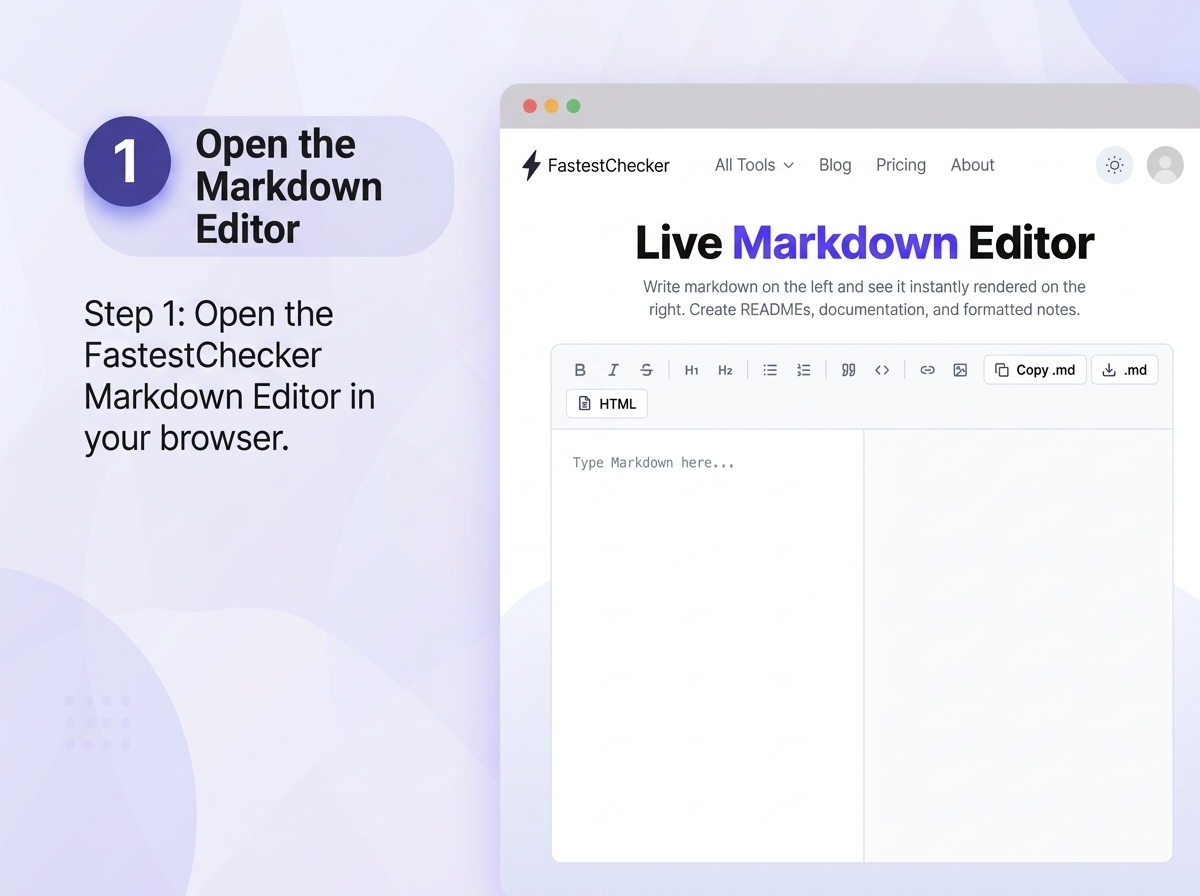
- Simply open the FastestChecker Markdown Editor tool directly in your web browser. There is no account registration, login, or software installation required. It loads instantly on any device—desktop, tablet, or mobile—so you can start writing without any setup hassle.
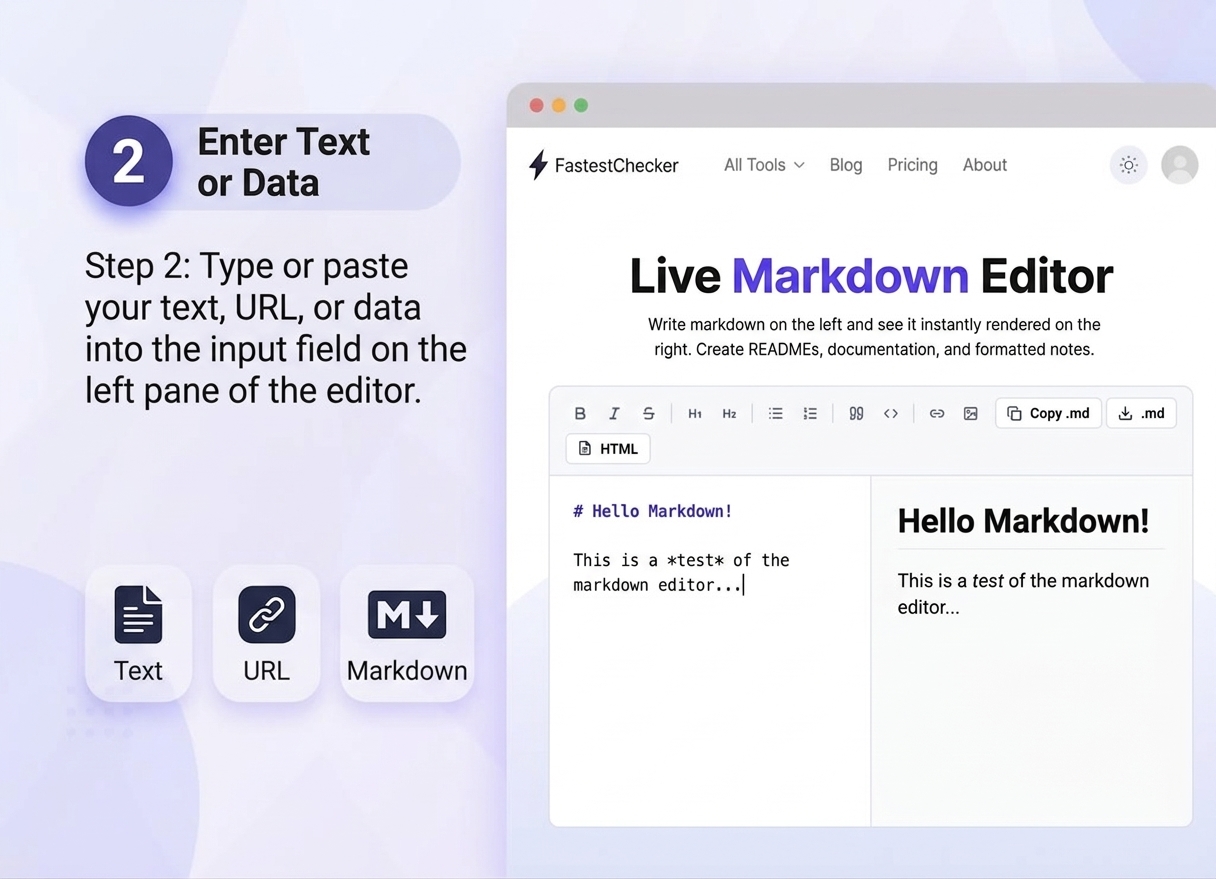
- Begin drafting your text in the left-hand editor pane using standard Markdown syntax. Whether you are writing a standard paragraph, creating nested bullet lists, formatting code snippets, or inserting images, the editor instantly recognizes your input and handles plain-text formatting seamlessly.
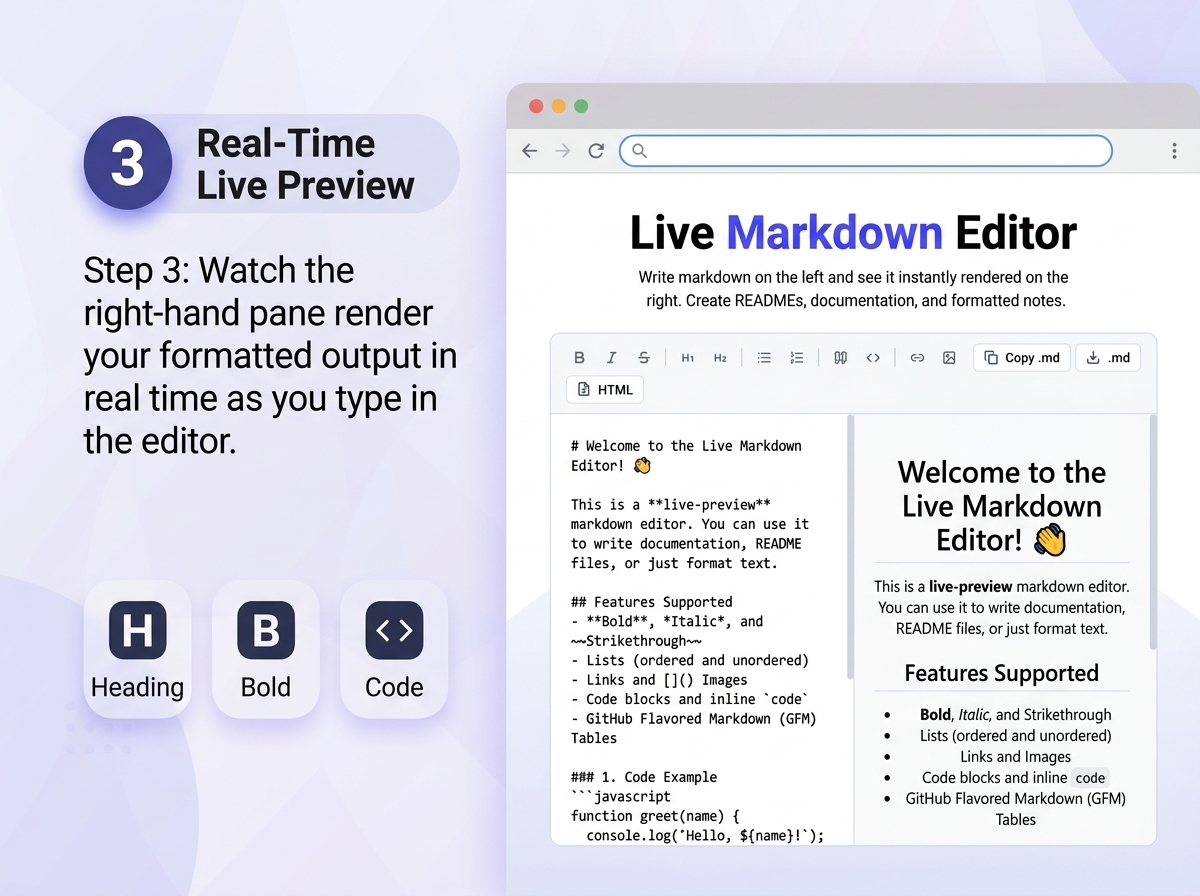
- As you type on the left side, watch the right-hand pane render your fully formatted document live in real time. This split-screen live preview ensures you immediately catch broken formatting, misplaced tags, or structural issues before you publish your work anywhere else.
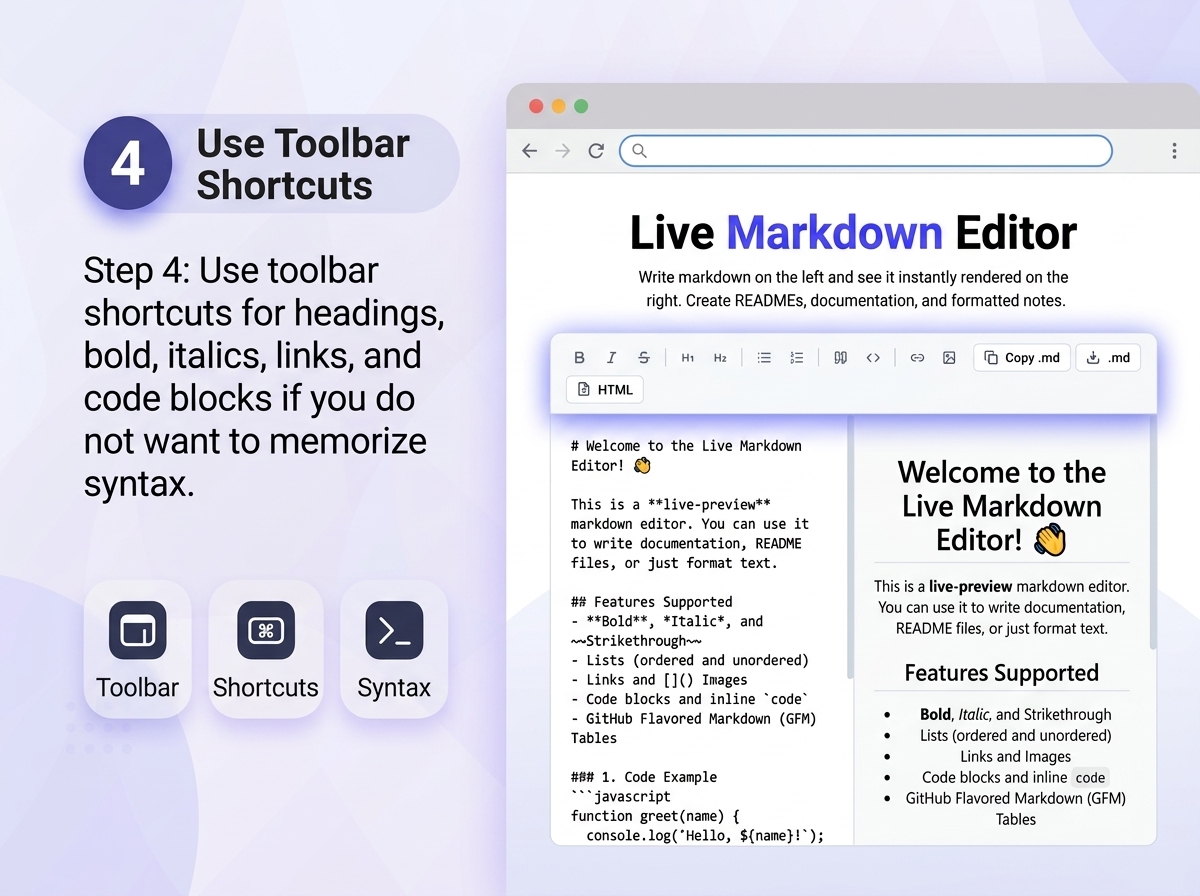
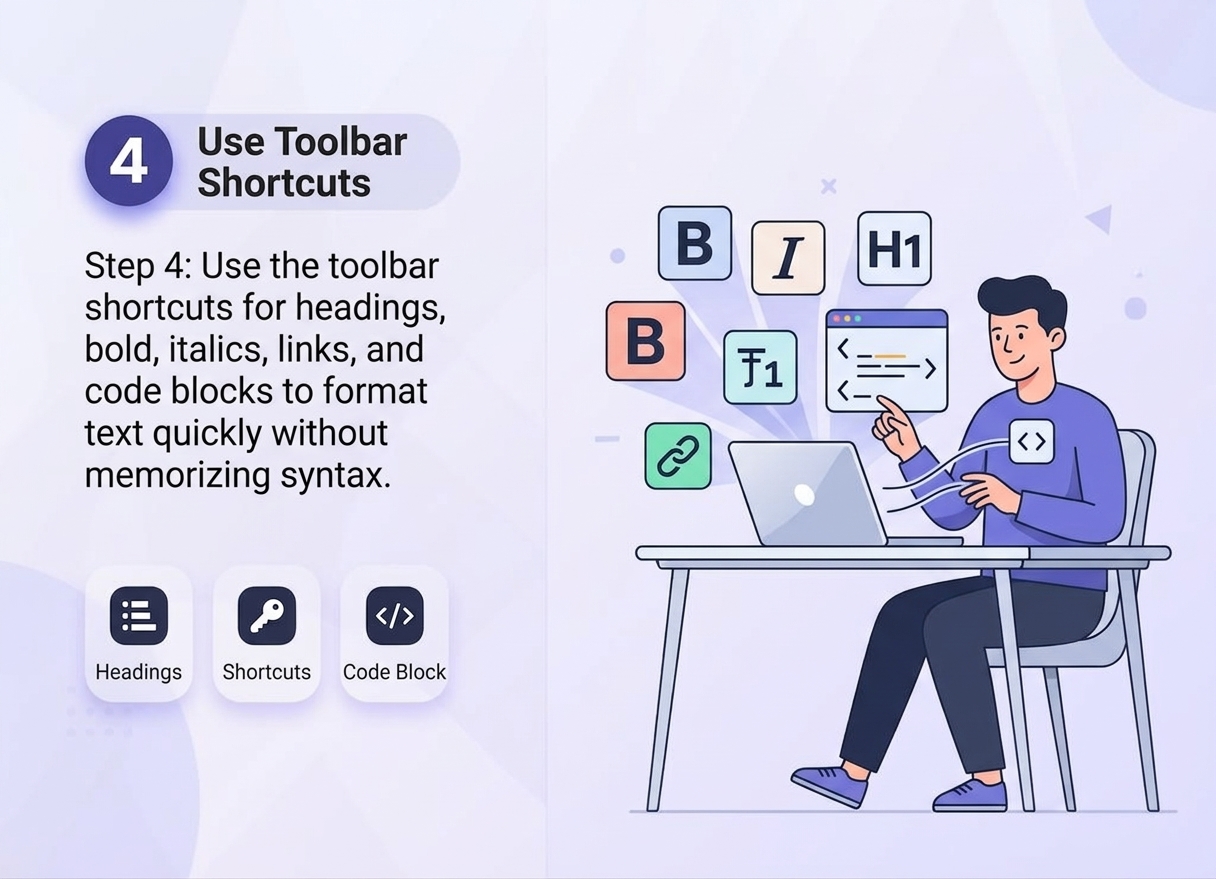
- If you are new to Markdown or prefer not to memorize syntax, use the convenient formatting toolbar at the top. With a single click, you can quickly insert headings ($H_1, H_2$), bold text, italics, blockquotes, code blocks, hyperlinks, and tables directly into your document.
- Once your draft is complete, effortlessly export your work. You can copy the raw Markdown, grab the pre-rendered HTML code with a single click, or download your file directly to your device. Simply paste the output into GitHub READMEs, your CMS (like WordPress or Ghost), Notion, or any developer documentation platform.
Pro tip: Draft your blog posts in Markdown first, preview the structure and headings clearly, then move the finished HTML into your CMS. It's often faster than fighting with a rich-text editor's formatting quirks.
Markdown Syntax Cheat Sheet
If you're new to Markdown, here are the essentials you'll use in almost every document:
- Headings:
# H1,## H2,### H3 - Bold:
**bold text** - Italic:
*italic text* - Links:
[link text](https://example.com) - Images:
 - Unordered list:
- item - Ordered list:
1. item - Code block: triple backticks before and after your code
- Blockquote:
> quoted text - Tables: pipes and hyphens to define columns and header rows
Who Benefits Most from a Markdown Editor?
Developers
Writing a clean, well-structured README or documentation file is essential for making open-source repositories and personal projects look professional. With a live preview editor, developers can write GitHub Flavored Markdown (GFM), test code blocks, verify nested bullet lists, and check image paths in real time. This instant feedback loop eliminates trial-and-error, ensuring you catch broken formatting before committing and pushing code to GitHub, GitLab, or Bitbucket.
Technical Writers & Bloggers
Drafting content directly in Markdown allows technical writers and bloggers to stay fully focused on sentence structure and clarity rather than wrestling with complex formatting toolbars. Markdown files are lightweight, plain-text, and completely portable—meaning a single draft can easily be transferred into platforms like Ghost, Dev.to, Hashnode, WordPress, or Static Site Generators (Hugo, Jekyll, Gatsby, Next.js MDX) without losing formatting or introducing unwanted hidden HTML tags.
Students & Researchers
Markdown has become a go-to standard for students and researchers taking lecture notes, organizing lab reports, and maintaining academic wikis. Its simple, distraction-free syntax makes typing rapid equations, citations, and structured outlines effortless. Because Markdown files are plain text, they take up virtually zero storage space and can be seamlessly version-controlled alongside dataset code, scripts, and research repositories using Git.
Product & Documentation Teams
Modern product teams rely heavily on Markdown for internal knowledge bases, release changelogs, user guides, and API documentation. Using a fast, no-install online editor allows team members to quickly draft and polish structured content—such as feature tables, task lists, and API endpoints—before pushing the final version into documentation systems like Notion, Confluence, Docusaurus, or GitBook.
Markdown vs. Rich Text: Which Should You Use?
Rich text editors (like Word or Google Docs) are great for polished, final-format documents with heavy design needs. Markdown wins when you need speed, portability, and version-control friendliness — since Markdown files are just plain text, they work beautifully with Git, diff cleanly, and never carry hidden formatting bloat that breaks when moved between platforms.
Tips for Cleaner Markdown Documents
- Keep one blank line between paragraphs and headings for reliable rendering across platforms.
- Use meaningful heading hierarchy (don't skip from H1 straight to H3).
- Prefer relative or full HTTPS links, and double-check them before publishing — you can verify a destination site's trustworthiness with our Website Age & WHOIS Checker if you're linking to unfamiliar domains.
- If your document includes screenshots, optimize them first with an Image Resizer so your README or article loads fast.
- Test your rendered output on the actual platform you're publishing to, since some flavors of Markdown (GitHub Flavored Markdown, CommonMark, etc.) render slightly differently.
Final Thoughts
Markdown remains one of the fastest ways to produce clean, structured, portable content — but only if you can see what you're building as you build it. Our free Markdown Editor gives you that instant feedback loop with zero setup, so you can focus on writing instead of wrestling with syntax. Bookmark it alongside the rest of the FastestChecker toolkit for your next README, blog draft, or documentation sprint.
Frequently Asked Questions
Is the FastestChecker Markdown Editor free to use?
Yes, the Markdown Editor is completely free, requires no signup, and runs entirely in your browser with real-time live preview.
Can I convert my Markdown into HTML with this tool?
Yes, the editor renders your Markdown as formatted HTML in real time, and you can copy the output to paste directly into your CMS, website, or documentation platform.
Does Markdown formatting work the same everywhere?
Mostly, but not always. Core syntax like headings, bold, and links is universal, while some platforms use extended flavors like GitHub Flavored Markdown for tables and task lists, so it's worth previewing on your target platform too.
Do I need to install any software to write Markdown online?
No installation is required. Our Markdown Editor works directly in your web browser on any device, so you can draft README files, blog posts, or notes instantly.
Muhammad Asad Arshad is the Founder and Lead Software Architect of FastestChecker, specializing in client-side Web APIs, cryptographic standards, and network diagnostics.